Source : Baycon Group
When you type information into Microsoft Word, each time you press the Enter key Word creates a new paragraph. You can format paragraphs. For example, you can indent the first line of a paragraph, you can set the amount of space that separates paragraphs, and you can align a paragraph left, right, center, or flush with both margins.
When you type information into Microsoft Word, each time you press the Enter key Word creates a new paragraph. You can format paragraphs. For example, you can indent the first line of a paragraph, you can set the amount of space that separates paragraphs, and you can align a paragraph left, right, center, or flush with both margins.
Styles are a set of formats you can quickly apply to a paragraph. For example, by applying a style, you can set the font, set the font size, and align a paragraph all at once. In this lesson, you will learn about the various formats you can apply to a paragraph and about styles.
When you are formatting a paragraph, you do not need to select the entire paragraph. Placing the cursor anywhere in the paragraph enables you to format it. After you format a paragraph, pressing the Enter key creates a new paragraph in the same format.
Add Space Before or After Paragraphs
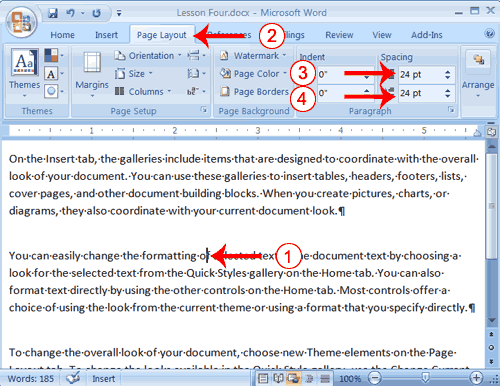
When creating a document, space is often used to clearly identify where each paragraph begins and ends. By default, Word may place slightly more space between paragraphs than it does between lines in a paragraph. You can increase or decrease the amount of space that appears before and after paragraphs by entering amounts in the Before and After fields in the Paragraph section of the Page Layout tab. Use the up arrows next to the Before and After fields to increase the amount of space before or after each paragraph; use the down arrows to decrease the amount of space before or after each paragraph
Add Space Before or After Paragraphs
Change Line Spacing
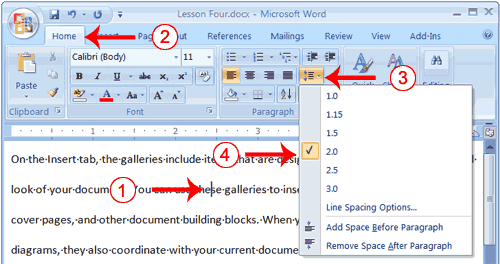
Line spacing sets the amount of space between lines within a paragraph. The spacing for each line is set to accommodate the largest font on that line. If the lines include smaller fonts, there will appear to be extra space between lines where the smaller fonts are located. At 1.5, the line spacing is set to one-and-a-half times the single-space amount. At 2.0, the line spacing is set to two times the single-space amount (double space).
Change Line Spacing
Create a First-Line Indent
Some people and organizations delineate the start of a new paragraph by indenting the first line. If you want to indent the first line of your paragraphs, you can use the Paragraph dialog box to set the amount by which you want to indent. In the Special Field of the Paragraph dialog box, you tell Word you want to indent the first line by choosing First Line from the menu options. In the By field, you tell Word the amount, in inches by which you want to indent.
| EXAMPLE: First-line Indent On the Insert tab, the galleries include items that are designed to coordinate with the overall look of your document. You can use these galleries to insert tables, headers, footers, lists, cover pages, and other document building blocks. When you create pictures, charts, or diagrams, they also coordinate with your current document look. |
Create a First-line Indent
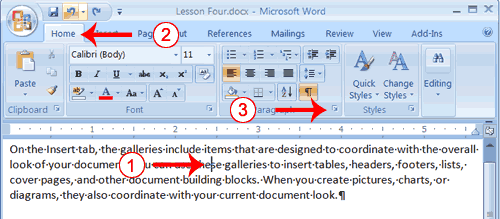
- Place your cursor anywhere within the first paragraph of the sample text you created
- Choose the Home tab.
- In the Paragraphs group, click the launcher. The Paragraph dialog box appears.
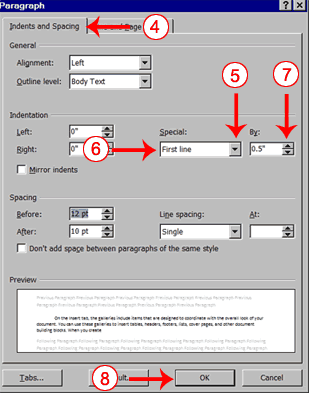
- Choose the Indents and Spacing tab.
- Click to open the drop-down menu on the Special field.
- Click First Line.
- Enter 0.5" in the By field.
- Click OK. The first line of your paragraph is now indented half an inch.
Special Note: To remove the first line indent:
- Place the cursor anywhere in the paragraph.
- Choose the Home tab.
- In the Paragraphs group, click the launcher. The Paragraph dialog box opens.
- Choose the Indents and Spacing tab.
- Click the down arrow next to the Special field and then click None.
- Click OK.
Indent Paragraphs
Indentation allows you to indent your paragraph from the left and/or right margin. You may find this necessary when you are quoting a large block of text. The following exercise shows you how to indent a paragraph 1 inch from each side.
| EXAMPLE: Indentation On the Insert tab, the galleries include items that are designed to coordinate with the overall look of your document. You can use these galleries to insert tables, headers, footers, lists, cover pages, and other document building blocks. When you create pictures, charts, or diagrams, they also coordinate with your current document look.
|
Indent Paragraphs
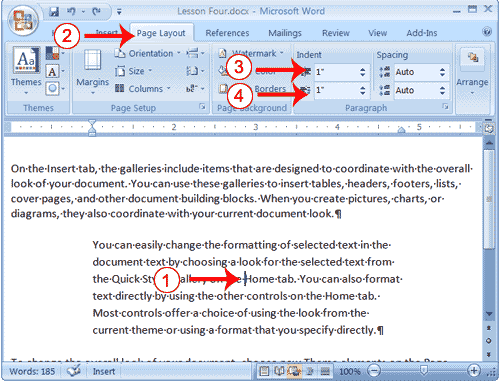
- Place your cursor anywhere in the second paragraph of the sample text you created
- Choose the Page Layout tab.
- Type 1" in the Indent Left field or use the up or down arrows to set the field value to 1".
- Type 1" in the Indent Right field or use the up or down arrows to set the field value to 1". Your paragraph is now indented one inch from both the left and right margins, as in the example.
Align Paragraphs
Microsoft Word gives you a choice of several types of alignments. Left-aligned text is flush with the left margin of your document and is the default setting. Right-aligned text is flush with the right margin of your document, centered text is centered between the left and right margins, and Justified text is flush with both the left and right margins.
| EXAMPLE: Left-Aligned Sample Paragraph On the Insert tab, the galleries include items that are designed to coordinate with the overall look of your document. You can use these galleries to insert tables, headers, footers, lists, cover pages, and other document building blocks. When you create pictures, charts, or diagrams, they also coordinate with your current document look. EXAMPLE: Right-aligned Sample Paragraph On the Insert tab, the galleries include items that are designed to coordinate with the overall look of your document. You can use these galleries to insert tables, headers, footers, lists, cover pages, and other document building blocks. When you create pictures, charts, or diagrams, they also coordinate with your current document look. EXAMPLE: CenteredSample Paragraph On the Insert tab, the galleries include items that are designed to coordinate with the overall look of your document. You can use these galleries to insert tables, headers, footers, lists, cover pages, and other document building blocks. When you create pictures, charts, or diagrams, they also coordinate with your current document look. EXAMPLE: Justified Sample Paragraph On the Insert tab, the galleries include items that are designed to coordinate with the overall look of your document. You can use these galleries to insert tables, headers, footers, lists, cover pages, and other document building blocks. When you create pictures, charts, or diagrams, they also coordinate with your current document look. |
Right-align
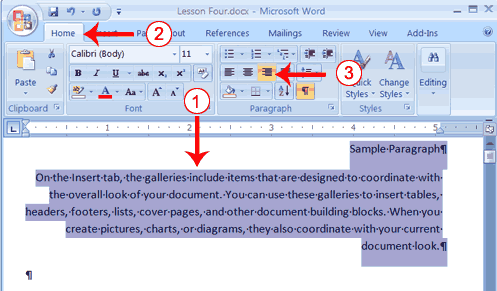
- Select the paragraphs you created.
- Choose the Home tab.
- Click the Align-right button
 in the Paragraph group. Word right-aligns your paragraphs.
Left-align
- Select the paragraphs you created.
- Choose the Home tab.
- Click the Align-left button
 in the Paragraph group. Word left-aligns your paragraph.
Center
- Selected the paragraphs you created.
- Choose the Home tab.
- Click the Center button
 in the Paragraph group. Word centers your paragraph.
Justify
- Select the paragraphs you created.
- Choose the Home tab.
- Click the Justify button
 in the Paragraph group. Word justifies your paragraph.
Alternate Method—Right-Justify with Keys
- Select the paragraphs you created.
- Press Ctrl+r. The paragraph is now right-aligned.
Alternate Method—Left-Justify with Keys
- Select the paragraphs you created.
- Press Ctrl+l. The paragraph is now left-aligned.
Alternate Method—Center with Keys
- Select the paragraphs you created.
- Press Ctrl+e. The paragraph is now centered.
Alternate Method—Justify with Keys
- Select the paragraphs you created.
- Press Ctrl+j. The paragraph is now justified.
Create a Hanging Indent
The hanging indent feature indents each line except the first line by the amount specified in the By field, as shown in the example.
EXAMPLE:Hanging Indent
|
Create a Hanging Indent
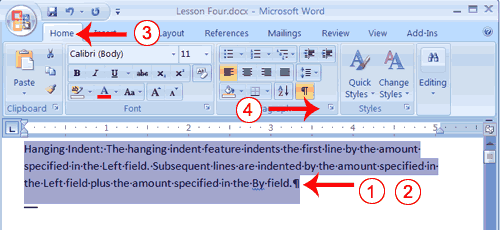
- Type the following:
Hanging Indent: The hanging indent feature indents the first line by the amount specified in the Left field. Subsequent lines are indented by the amount specified in the Left field plus the amount specified in the By field. - Select the paragraph you just typed.
- Choose the Home tab.
- Click the launcher in the Paragraph group. The Paragraph dialog box appears.
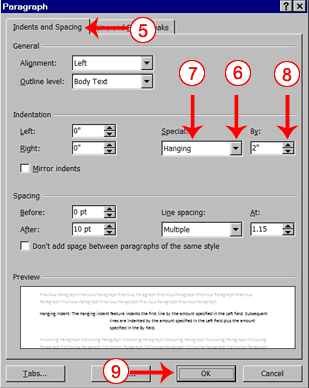
- Choose the Indents and Spacing tab.
- In the Special field, click to open the pull-down menu.
- Click Hanging.
- In the By box, type 2".
- Click OK.
- Place the cursor after the colon following "Hanging Indent."
- Press the Tab key. Notice that the indentation changes.


0 comments:
Post a Comment